
Indice
Frequently Asked Questions about Using the Forum and Other Services
Questions are listed in alphabetical order based on a keyword defining the topic, with a few exceptions. The box on the right contains an index of all questions that have been asked and publicly answered.
Le domande sono divise in tre categorie corrispondenti ai servizi offerti:
At the bottom of the page, you'll find links_to_other_pageslinks to other site pages..
FORUM
ATTACHMENTS - I've added some attachments, but I can only use three
There is a limit of 3 attachments per post. The first three attachments will have a green checkmark on the right after a short while, indicating that they have been uploaded correctly and can be used. Subsequent attachments will have an orange warning sign. Only attachments with a green checkmark can be used in your post.
This limit on the number of attachments per post is to prevent too many images from being uploaded to each page. Uploading many images can overload the server, which is best avoided.
AVATAR - I've registered, but I can't set an avatar
You cannot set an avatar immediately after registering; it will only be activated after your registration has been approved by a moderator.
Additionally, the avatar must meet the following specifications:
- Minimum dimensions: 20×20 pixels
- Maximum dimensions: 100×100 pixels
- Maximum file size: 8000 bytes
COOKIES - To accept or not to accept?
 When you first access the forum, or if you have never accepted cookies before, or if you have deleted them, or if it has been a year since your last visit, a message will appear at the top of the forum asking you to accept cookies. The cookies used by the forum are technical cookies only, designed to improve your browsing experience. The site owners do not profile users or share user information with third parties.
If you wish to accept cookies, you can click on the link indicated by the arrow; you can also browse the forum without accepting cookies, but you will see this message on every page.
 If you would like more information before making a decision, you can scroll to the bottom of the page and click on the “Policy” link, where you will find more detailed rules and instructions on how to delete cookies or your registration.
In any case, this page provides both a method for deleting cookies and a detailed description of them. This page does not use cookies.
CORRECTIONS - I want to correct a typo in one of my posts, how can I do it?
You can correct a typo within 10 minutes of posting. After that, for any changes, you must contact the administrators who, if they notice obvious typos, will often correct them. However, it's always best to report the error.
The reason for blocking changes to a published post is to prevent situations where User A makes a post, User B replies, and then User A modifies their original post, making User B's response incomprehensible (this has happened in the past).
DELETIONS - I want to delete one of my posts, how can I do it?
Deleting a post is reserved for administrators, and a request must be made to them.
Normal users can only delete their own posts within 5 minutes of posting them.
Please do not make a game of writing posts, sending them, and then immediately deleting them. Systematic behavior of this kind may result in sanctions against the user.
IMAGES - I can't insert images, format text, or add links
 The mentioned functions are inserted into the text using special commands written in square brackets called BBCode.
At the bottom of the post submission page, below the submit button, there are some options.
Make sure that the “Disable BBCode” option is not checked. To insert the mentioned commands, it must be as shown in the image above.
Checking this option is useful if you want to quote some of these commands in a post, for example to illustrate their function.
LOGIN
 To post on the forum, send private messages, and view additional forums, you need to log in with your registered account.
On the forum homepage, in the top right corner, you'll find the word “login”. Click on it.
 This screen will open.
In the field marked with number 1, enter your username, which is public. In the field marked with number 2, enter your password, which is private and will be hidden by asterisks.
If you are the only user of your computer or if you trust others who may use it, you can check the box to the left of “Remember me” (number 3). This will make it easier for you to log in to the forum. However, if your computer can be used by people you don't trust, it's best not to check this box, as others could then post on the forum as you. The same goes if you ask the browser to remember your password.
If you don't want other users to know you're logged into the forum, you can check the box marked number 4. The choice is yours; some moderators have chosen to remain hidden, while others have not.
Once you have completed these steps, you can press button 5 and you will be logged into the forum as a registered user; from this point on, you can post or send private messages.
ONLINE - Why does the word "online" appear next to my name in my posts?
The word “online” diagonally in the upper right corner appears next to all registered users who are currently logged into the forum. Therefore, it will also appear next to your posts, but not necessarily only next to yours.
Some people may find it annoying if others know they are online at that moment. If you don't want your online status to be visible, you can follow this simple procedure, assuming the forum is configured in Italian:
- Log in to the forum with your username and password if you're not already logged in;
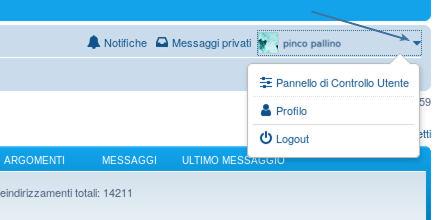
- Click on your username in the top right corner and then on “User Control Panel”.\
- Select the “Preferences” tab;
- Go to the “Log in as a hidden user” entry and check the box to the left of “Yes”;
- Press the “Submit” button at the bottom of the screen.
However, everyone will still see themselves as online, even if they have chosen to be a hidden user.
PRIVATE MESSAGES - I've run out of or am running out of space for private messages. What can I do?
Server space is limited, and each folder can hold a maximum of 100 messages. However, you can create up to 4 additional folders where you can move older messages or those you want to keep. Of course, if you use private messages extensively, at some point you will need to either delete messages or ask your “trusted” correspondents to use email to communicate.
Given the limited space, it seems preferable to switch to email with trusted users, leaving private messages for cases where you prefer not to provide your email address. Let's see how to create a new folder.
Open the private messages page. In the left column, click on “rules, folders, and preferences”. A page similar to the one below will open. If you want to see it larger, click on it.
 If you want to create a new folder, you can type its name in the field marked with the letter A and then press add; let's assume we created a folder named “One”. Then you can type, in the field marked with the letter B, that if a folder is full, messages should be moved to the folder “One” and then press the modify button at the bottom of the page. And so on. When you have used all four additional folders, you will either have to start deleting messages or choose the option, highlighted by arrow C, which, if a folder is full, deletes the oldest messages. We recommend using this last option immediately and manually saving any important messages to a specific folder if necessary (there is an option when you go to read a private message, at the bottom of the page).
PRIVATE MESSAGES - Once a message is sent, it remains in the outbox and is not in the Sent items
Until the recipient has read it it remains in the outbox; only then will the message be moved to the sent items.
As long as the message is in the outbox, it can be edited and even deleted (the latter is not recommended because the recipient will still receive a notification and will also see that the private message has been deleted).
REGISTERING FOR THE FORUM - I can't register for the forum
Registration is required to post on the forum.
The following instructions are accompanied by images. You can enlarge these images by clicking on them.
 \ If you haven't accepted cookies yet, this window will appear. To register, you must accept cookies. These are technical cookies that help improve your forum experience. For more information, click on this link.
As explained in this specific page, which also allows you to delete cookies, the forum uses technical cookies in accordance with the provisions published by the Italian Data Protection Authority in the Official Gazette no. 126 of 3 June 2014.
In any case, it's good to know that the atrieste.eu site is non-profit, does not contain advertising, and does not profile its users.
 \ To register for the forum, which as mentioned is necessary to post, you need to click on the “Register” link on the homepage or follow this link.
 \ \ \ \ \ A page will appear with a description of the forum and a summary of the rules that users must follow (for more details, see Regolamento del Forum aTrieste.eu) and how the forum complies with the GDPR, the European data protection regulation. By clicking on the indicated button, you accept the terms. After that, the actual registration process begins.
 Registration takes place through the specific page shown here. You can enlarge the image by clicking on it.
The first thing to enter is the so-called “nickname” or username, a fictional name used to identify the user but ensuring their anonymity. Following the Facebook trend, many users recently register with their first or last name. If anonymity is a priority, it is recommended to choose a fictional name. Some names are blocked, either because they are vulgar or because they might suggest an administrative role that the user does not have.
The first thing to enter is the so-called “nickname” or username, a fictional name used to identify the user but ensuring their anonymity. Following the Facebook trend, many users recently register with their first or last name. If anonymity is a priority, it is recommended to choose a fictional name. Some names are blocked, either because they are vulgar or because they might suggest an administrative role that the user does not have.
To avoid errors, you must then type the password twice, which, together with the nickname, fully identifies the user. We strongly advise against using simple passwords like abcabc or 123456. The password is not stored in plain text anywhere and is not known to the administrators, who can only change it upon request (you can change your password at any time).
The only personal data required is your email address. It is used during registration to confirm receipt of the request and then the subsequent acceptance by the moderators. In general, and unless there are special circumstances, it is never used to communicate with the member, unless it is to answer a question. All members can contact each other through private forum messages.
You can choose the language of the forum interface (currently Italian, English, and Triestine), the time zone, and finally, you must answer a question to confirm your registration. The purpose of this question is to prevent automated registrations. Please read the question carefully and follow the instructions on how to formulate your answer.
—-
MESSAGGI PRIVATI - Ho esaurito o sto esaurendo lo spazio sui messaggi privati. Cosa posso fare?
Lo spazio sul server non è infinito ed ogni cartella ha la possibilità di contenere, al massimo 100 messaggi. È tuttavia possibile creare fino ad un massimo di altre 4 cartelle dove si possono dirottare i messaggi più vecchi o quelli che si vogliono conservare. Certo che, se si fa largo uso dello strumento dei messaggi privati, ad un certo punto si dovrà o procedere ad eliminare messaggi o chiedere ai corrispondenti “fidati” di usare la posta elettronica per comunicare.
Premesso che, vista la limitatezza dello spazio, sembra preferibile passare all'email con gli utenti di cui ci si fida, lasciando i messaggi privati per i casi in cui si preferisce non fornire la propria email, vediamo come procedere per creare una nuova cartella.
Apriamo la pagina dei messaggi privati. Nella colonna di sinistra facciamo clic su “regole, cartelle e preferenze”. Si aprirà una pagina simile a quella qui sotto. Se la volete vedere in grande fateci clic sopra.
Se vogliamo creare una nuova cartella possiamo digitarne il nome nel campo indicato con la lettera A e poi premere aggiungi; supponiamo di aver creato una cartella di nome “Uno”. Poi possiamo digitare, nel campo indicato con la lettera B che se una cartella è piena i messaggi vadano spostati nella cartella “Uno” e poi premere il pulsante modifica in fondo alla pagina. E così avanti. Quando avremo utilizzato tutte e quattro le cartelle aggiuntive dovremo o cominciare ad eliminare messaggi o scegliere l'opzione, evidenziata dalla freccia C, in base alla quale, se una cartella è piena, i messaggi più vecchi vanno cestinati. Si consiglia di usare quest'ultima opzione da subito e di procedere manualmente all'eventuale salvataggio di messaggi ritenuti importanti in una cartella ad hoc (esiste l'opzione quando si va a leggere un messaggio privato, in fondo alla pagina).
MESSAGGI PRIVATI - Una volta inviato il messaggio, esso resta tra i messaggi in uscita e non compare tra gli inviati
Una volta inviato un messaggio, esso resta tra i messaggi in uscita fino a quando il destinatario non lo ha letto; solo allora il messaggio verrà messo tra i messaggi inviati.
Fintantoché il messaggio è tra i messaggi in uscita, esso può essere corretto e, persino, cancellato (pratica, quest'ultima, sconsigliata perché comunque il destinatario riceverà l'avviso e vedrà anche che il messaggio privato è stato cancellato).
ON LINE - Perché accanto al mio nome appare, nei miei post, la scritta "on line"?
La dicitura online in alto a destra in diagonale appare accanto a tutti gli utenti registrati che sono in quel momento collegati al forum. Di necessità, quindi, appare anche accanto ai propri post, ma non necessariamente solo accanto ai propri.
A qualcuno/a dà fastidio che gli altri sappiano che lui/lei è collegato/a in quel momento. Se si desidera che l'essere collegato/a o meno non appaia, si deve seguire, avendo configurato il forum in lingua italiana, la seguente, semplicissima, procedura.
- collegarsi al forum con il proprio nome utente e la password, se non si è già collegati;
- fare clic sul nome dell'utente in alto a destra e poi su “Pannello di controllo utente”.
- Scegliere la scheda Preferenze;
- Andare alla voce Accedi come utente nascosto e spuntare, facendo clic sopra il pallino a sinistra del Sì;
- Premere il pulsante Invia in fondo alla videata.
Ognuno vedrà, comunque, se stesso come on line, anche se ha scelto di essere un utente nascosto.
ORA DEL FORUM: il forum non mostra l'ora corretta
Premesso che l'ora è legata a quella del server dove sono memorizzate le pagine e che se il server ha l'ora sbagliata (di solito qualche minuto) non è possibile farci nulla, per regolare correttamente l'ora sulle pagine del forum e sui post è necessario:
- Accedere al “pannello di controllo utente” facendo clic sul proprio nome in alto a destra di una pagina
- Aprire la scheda “Preferenze”.
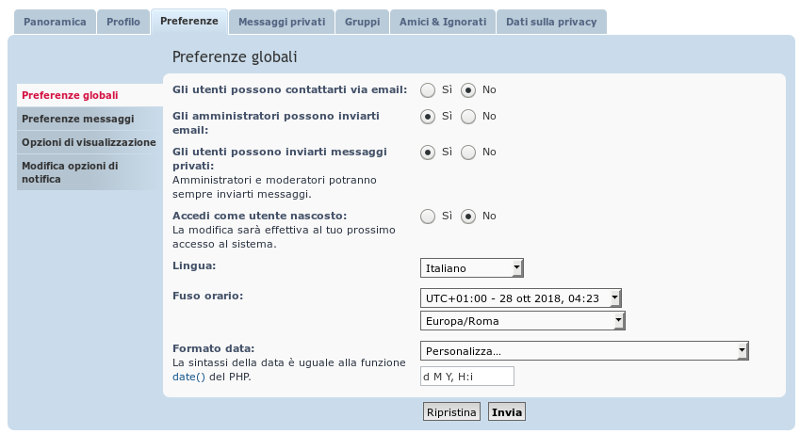
- Impostate correttamente il fuso orario della vostra zona (UTC+01:00 se vivete nell'Europa centrale (Italia, Austria, Francia, Germania, Slovenia, Spagna, …)
- Nella casella subito sotto scegliete la nazione di appartenenza, identificata dal nome della sua capitale. Per l'Italia, Europa/Roma, ma potete scegliere la capitale che più vi aggrada, basta che abbia gli eventuali cambi dell'ora legale coerenti con i vostri.
- Premete il pulsante “Invia”.
- Se avete fatto tutto correttamente il sistema provvederà da solo a cambiare l'ora da legale in solare e viceversa al momento opportuno.

Si ricorda ancora che non è possibile intervenire se l'ora del server è sbagliata.
PASSWORD - Ogni volta che mi collego devo digitare il mio user name e la mia password

È, probabilmente, possibile far memorizzare al computer la propria username e password. Basta, all'atto del login spuntare la riga sotto alla password, evidenziata dalla freccia. Attenzione che ogni volta che si fa il logout, per esempio per consentire ad un altro di collegarsi sullo stesso computer con un altro nome utente, poi sarà necessario ripetere il login e spuntare il campo indicato.
La scelta di far conservare username e password non deve essere fatta se il computer viene usato da persone fisiche diverse da voi che potrebbero, in questo modo, avere la possibilità scrivere sul forum a vostro nome.
PASSWORD - Vorrei cambiare la password o la casella di posta
Dopo essersi collegati al forum con il proprio nome utente e la password, nella pagina indice del forum fare clic sul nome dell'utente in alto a destra e poi su “Pannello di controllo utente”.
Seguire poi le istruzioni qui sotto riportate.
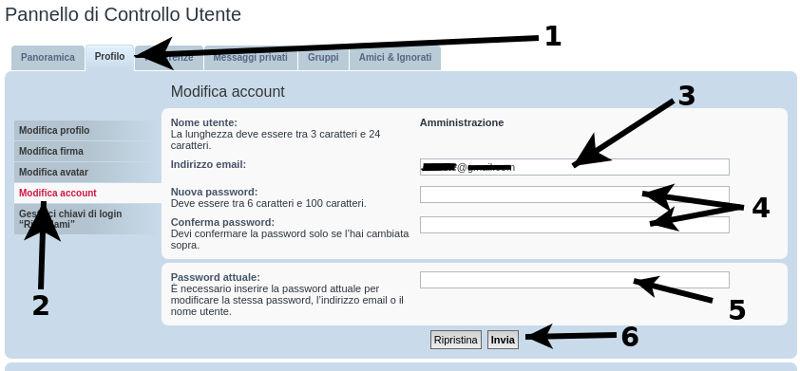
- Nella pagina che si apre selezionare la scheda “profilo” evidenziata col numero 1
- Selezionare “Modifica account” evidenziato nella figura col numero 2
- Se si vuole cambiare la casella postale scrivere il nuovo indirizzo nella casella evidenziata dal numero 3. Il cambio della casella di posta comporta la disattivazione dell'account che dovrà venir riattivato da un amministratore al quale il sistema provvederà a mandare, automaticamente, un avviso. Non toccare questa casella se si vuole cambiare solo la password..
- Se si vuole cambiare la password scriverla due volte nelle caselle evidenziate col numero 4. Non toccare queste caselle se si vuole cambiare solo la casella postale.
- Scrivere la vecchia password nell'ultimo campo in basso evidenziato col numero 5.
- Premere il pulsante “Invia” evidenziato col numero 6
RANGO - Nei miei post, sotto al mio nome, compare la parola naufrago ed una piccola carta da gioco
È il cosiddetto “rango” degli iscritti al forum che dipende dal numero di post fatti: al primo post si diventa “naufraghi”, capitati per caso. Dopo 10 post si diventa “vilegianti” e così via fino a “Senator” per chi ha più di 39.304 post e “Senator a vita” per chi ne ha oltre 64.000.
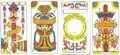
 La figura che compare sotto è una o più carte di quelle cosiddette “triestine”. Si inizia con una carta, il 2 di bastoni, e a 1.000 post si conquista l'asso di bastoni. A 1.331 post all'asso di bastoni si aggiunge il 2 di coppe, e così avanti fino ad avere tutti gli assi dopo 64.000 post, ma ancora nessuno è a quel livello.
SCRITTURA - Vorrei scrivere un intervento
Per scrivere sul forum devi essere iscritto e devi anche aver effettuato il login.
Dalla pagina indice del forum, scegli una delle sezioni, quella che ti pare sia più adatta al tema che intendi trattare. Facendo clic sulla sezione scelta, ti si apre l'elenco dei titoli di tutti gli interventi che sono stati fatti. L'elenco dei titoli può essere anche molto lungo; sarebbe meglio scorrerlo tutto per verificare se il titolo è già stato trattato, nel qual caso basterebbe fare un risposta (campo bianco verso il fondo della pagina del titolo scelto).
Se ti sembra che il tema non sia stato ancora trattato, scegli in alto a sinistra il pulsante “Nuovo argomento”.
Si aprirà questa pagina che puoi vedere leggermente ingrandita facendoci clic sopra.

- Puoi mettere un'icona a fianco dell'argomento che stai creando (su questo forum è stato usato quai mai e l'opzione “Nessuna” è quella che viene proposta.
- Devi scegliere un titolo; questa scelta è obbligatoria. Scegli un titolo che descriva bene ciò che vuoi scrivere e tieni presente che chi frequenta il forum sarà indotto a leggere il tuo post solo se il titolo gli sembra interessante.
- Quando scrivi puoi formattare il carattere usando questi pulsanti. B sta per grassetto, U per sottolineato, I per italico, ecc. Questi comandi creano coppie di caratteri racchiusi tra parentesi quadre; così il testo “Voglio scrivere in [b]Grassetto[/b]” diventerà, ma solo una volta spedito, “Voglio scrivere in Grassetto”
- Questo è lo spazio dove puoi scrivere il tuo testo.
- Nel testo, oltre che ad eventuali formati, è possibile inserire emoticons. Se scegli
 vedrai sul testo i caratteri :D che, una volta spediti, si trasformeranno nella faccina sorridente, e così via.
 - Il pulsante invia consente di inviare il messaggio e renderlo visibile a tutti; si consiglia sempre, prima di inviare il messaggio, di controllarlo attraverso l'anteprima. Con l'anteprima il messaggio non è ancora inviato, per cui se spegnete il computer, esso andrà perso, però vi permette di verificare che sia tutto come desiderate prima di inviare il messaggio. SI ricorda che i messaggi sono modificabili, dopo averli inviati, per alcuni minuti, e poi basta.
- Sono alcune opzioni, il cui uso esula se state leggendo queste istruzioni.
- Potete allegare delle immagini; qualche spiegazione in più si trova qua.
- Potete attivare un sondaggio. Il sondaggio permette di raccogliere l'opinione degli utenti iscritti che intendono rispondere. Di solito la partecipazione alle risposte è molto modesta, per cui si consiglia di usare questo strumento solo con molta parsimonia.
TESTO - Come funziona la formattazione del testo?
Per la formattazione dei messaggi si rimanda alla pagina sui comandi di formattazione dei post nel forum.
TESTO - Non riesco ad inserire le faccine
Le faccine, tecnicamente dette emoticon vengono inserite nel testo mediante sequenze particolari di caratteri che vengono riconosciuti come tali; molti si aprono e chiudono con i due punti, altri sono semplicemente delle sequenze di caratteri particolari.
In fondo alla pagina di inserimento del post, sotto al pulsante di invio, ci sono alcune opzioni.
Accertarsi che la voce “Disabilita emoticon” non sia spuntata. La spuntatura della voce ha senso se si devono utilizzare le sequenze di caratteri citate come tali senza che vengano interpretate.
ULTIMI ARGOMENTI TRATTATI - vorrei vedere l'elenco degli ultimi argomenti trattati nel forum
 È possibile vedere l'elenco degli interventi fatti sul forum nell'ultima settimana o nell'ultimo giorno, o quelli non letti o quelli che non hanno ancora avuto risposta. Per farlo basta fare clic sulla voce “Collegamenti rapidi in alto a sinistra. Si aprirà un menù a tendina che darà la possibilità di vedere, per un utente iscritto:
- l'elenco dei propri messaggi;
- quello dei messaggi inseriti dopo l'ultimo login (Messaggi recenti);
- quelli che l'utente non ha ancora letto;
- l'elenco dei messaggi che non hanno mai ricevuto una risposta;
- l'elenco degli argomenti attivi che hanno avuto interventi nell'ultima settimana (argomenti attivi).
C'è poi la possibilità di:
- aprire una pagina per eseguire una ricerca avanzata nell'intero forum (equivalente alla ricerca avanzata rappresentata in alto a destra da una ruota dentata);
- consultare l'elenco degli iscritti;
- contattare gli amministratori e moderatori.
Per gli utenti che non sono iscritti c'è solo la possibilità di consultare gli argomenti che non hanno avuto una risposta, gli argomenti attivi e di fare una ricerca avanzata.
UTENTE - Vorrei cambiare il mio nick name (nome utente)
Non è possibile cambiare il proprio nick name. Lo può fare solo un amministratore e la richiesta di cambio deve essere motivata ed approvata dal gruppo dei moderatori.
UTENTE - Vorrei cancellare la mia iscrizione al forum
Per la cancellazione della propria iscrizione l'utente deve fare richiesta agli amministratori Maggiori dettagli si trovano nel regolamento.
PAGINE WIKI
PERMESSI - Pur essendo registrato sul forum non riesco ad inserire una pagina wiki
La lettura della pagine wiki è aperta a tutti, ma la scrittura ha bisogno di un'apposita autorizzazione da parte di un moderatore.
SCRITTURA - Come si scrive o formatta una pagina wiki?
La sintassi per la scrittura delle pagine wiki è descritta in inglese alla pagina syntax
Una traduzione in italiano della stessa pagina è disponibile alla pagina sintassi
CARICAMENTO DELLE FOTO
INSERIMENTO - Come posso inserire una foto in un mio post sul forum?
Ti consigliamo di leggere l'apposita sezione dedicata a questo argomento che trovi qui.
PERMESSI - Pur essendo registrato sul forum non riesco a caricare delle foto
Tutti gli iscritti al forum possono caricare foto come allegati ai singoli post. Per poter usufruire del servizio specifico di caricamento delle foto (raccomandato a chi inserisce foto di frequente) è necessario chiedere ad uno dei moderatori l'autorizzazione ad accedere al servizio.